Mouse DPI Analyzer
Professional-grade tool to accurately test your mouse DPI with pixel-level precision
DPI Measurement Interface
Pixels Moved
Your DPI ( Estimated )
Accuracy
What Is a Mouse DPI Analyzer?
A Mouse DPI Analyzer is a free online tool that accurately tests your mouse and measures its sensitivity. In other terms, DPI stands for dots per inch, and it measures how sensitive your device is when you move it physically.
The tool is specially designed for gamers, graphic designers and everyday users who want smooth and consistent performance on their screens. It doesn't require downloading the software, allowing you to check how higher DPI makes the cursor move farther with less physical movement, while lower DPI is converted into slower and more precise motion.
This analyzer helps in determining how your cursor moves physically and what it means on-screen. It basically tells how many counts or pixels are allocated for every movement you make. In short, this tool is a reliable way to calculate your mouse's performance, which ensures accuracy and comfort in every movement.
What is DPI And Why Does It matter?
DPI, or dots per inch, basically defines how far a cursor goes when we move the mouse physically. A higher DPI means the cursor travels farther with less movement, which is usually ideal for games and high-resolution displays. A lower dpi provides you the control and precision for graphic designing and photo editing, making tasks even smoother and more accurate.
In other terms, DPI is a measure of the sensitivity of your mouse, determining how sensitive a mouse is to small counts of movement. Some manufacturers use CPI, or counts per inch, for the same concept, showing how many pixels the cursor moves on-screen. With fine-tuning, users can notice a difference and balance control and motion for work or play.
- Adjust your settings for better aim in FPS games.
- Match the sensitivity between different mice.
- Improve accuracy during everyday tasks.
Visual Guide: How to Use Mouse DPI Analyzer
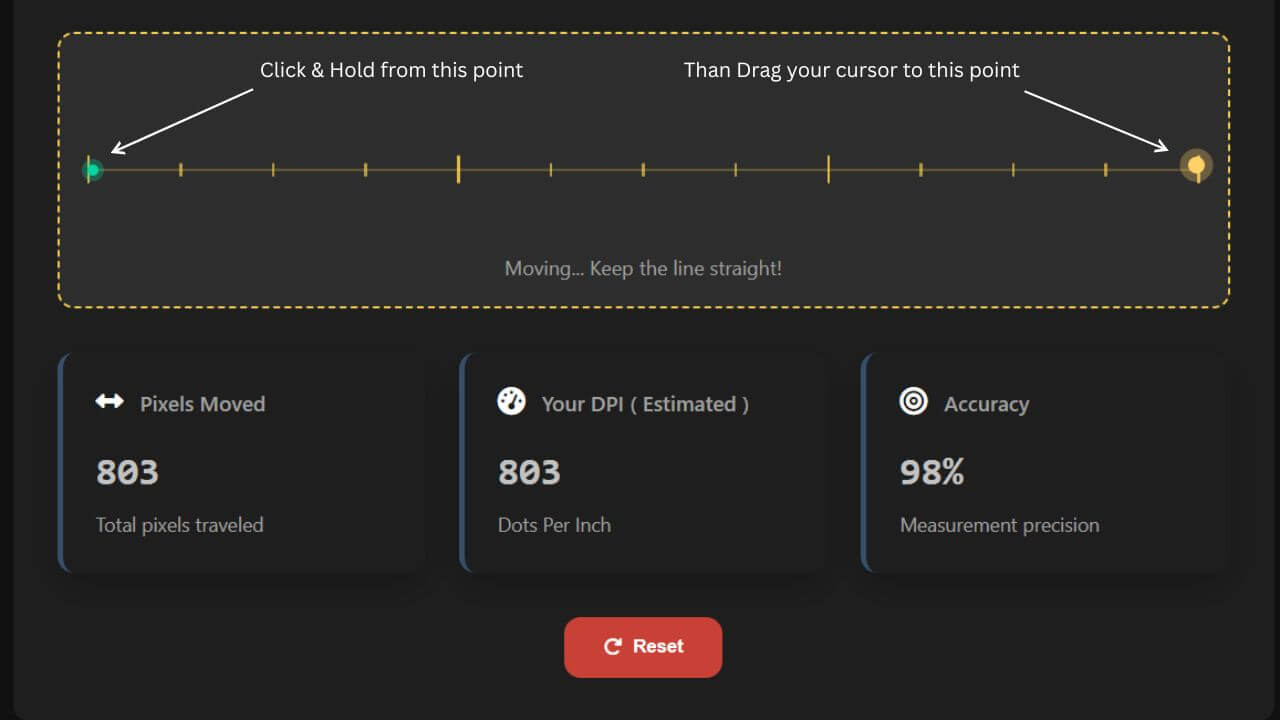
Step-by-Step Visual Guide: Click and hold at the starting point, drag your cursor exactly 1 inch to the ending point while keeping the line straight, then view your pixels moved and estimated DPI results.
What is the use of this website?
This website is a reliable tool that helps users check, adjust, and manage their mouse performance easily. It supports modern mice by reading DPI from packaging or software, helping when you feel unsure about the value mentioned by the manufacturer and ensuring it's accurate.
It's useful for those who want to find the right level that matches their setup, offering more control through testing, verifying, and comparing details and results. The site helps ensure every small variation is properly calibrated, keeping your settings precise and consistent at all times.
What DPI should I use?
Choosing the right DPI setting depends on the use of your mouse and the type of task and functions you perform. Every action needs a balance of speed and control, so try various ranges to see what feels most natural and comfortable for your hand, screen, and setup.
Finding the Best DPI for Gaming
There's no universal best DPI setting cuz it depends upon your playing style. For FPS games, use a low DPI between 400 and 800 for better and precise aim and stay in control during fast movements.
Ideal DPI for Creative and Design Work
For creative work like photo editing, graphic designing or drawing, a higher DPI. Around 600 to 1000, offers better precision to deal with fine details and small lines.
Recommended DPI for Daily and Browsing Use
For everyday use, such as web browsing, office tasks and watching videos, a DPI between 800 and 1200 is good, which keeps the cursor moving easily across the screen.
Testing and Adjusting for the Perfect Fit
Remember, there's not always a single perfect solution; your ideal DPI depends upon what feels right for your hand. Only choose what helps you maintain control and perform naturally.
Methods to Check the DPI of Your Mouse
1. Checking Through Manufacturer Details and Software Tools
The easiest way to check your mouse DPI is by referring to the manufacturer's specifications or using configuration software developed for the model of your mouse by the company. Most gaming mice include fixed ranks such as 400, 800, 1600, and 3200, which are often documented on the packaging or in the user manual. Popular brands like Logitech G Hub, Razer Synapse, Corsair iCUE and SteelSeries Engine allow users to view and adjust DPI settings directly. For example, a display might show "Level 3 of 5" or be set to 1200 DPI. Many mice also provide a DPI button, which cycles through LED colours or blinking patterns to indicate active levels when pressed. While this may not confirm the exact sensor output, it only reveals the configured DPI value recognised by your system.
2. Verifying DPI with an Online Analyzer
If you want quick results, try an online DPI analyzer tool, a browser-based and reliable tool that requires no installation. The online tester usually requires you to enter a target distance like 5 inches or 10 centimetres, then move your mouse across the mousepad for that exact distance. The tool calculates your DPI by dividing the number of counts by the distance moved physically. For the best and precise results, disable mouse acceleration in Windows settings, turn off "Enhance Pointer Precision," and ensure one-to-one input for accurate measurements and results.
3. Measuring DPI Manually (DIY Method)
You can also measure DPI manually using a ruler and your screen. Turn off the mouse acceleration, open a drawing software, and note your screen resolution. Then, place a ruler on your mousepad and move your mouse two inches in a straight line. Watch how far the cursor moves on the screen. For instance, if it moves 1920 pixels over three inches, your DPI is roughly 640. It follows the following formula:
DPI = pixels moved ÷ inches moved.
4. Limitations of Manual DPI Testing
While the manual method is helpful in quick situations, it's harder to get accuracy compared to using an online analyzer tool. Measuring exactly how far the mouse moved and how many pixels the cursor has travelled can be difficult, but when you know your screen resolution and also use the full width, it can improve accuracy. This works best when carried out carefully, good for users who prefer to test manually without extra software.
Why Should You Check Your Mouse DPI?
Checking your mouse DPI ensures whether the cursor responds precisely to your movement or not, which is crucial for both gaming and productivity. Knowing and adjusting DPI through testing allows you to regulate in-game sensitivity, reach the ideal eDPI, and personalise your experience for better control and performance.
DPI for Gaming Performance
For gamers, DPI has a direct impact on aiming, speed, and control, particularly in FPS games like Valorant or CS: GO. The right DPI helps you aim precisely and accurately, maintain consistent flick shots, and attain smooth motion that fits your playing style.
DPI for Creative Work
In creative work such as graphic design, illustration, or video editing, professionals count on precise tracking and accuracy. If the DPI is too high, small movements may result in nervous control, but adjusting it helps in achieving smooth motion and elevates detailed tasks.
DPI for Everyday Use
Even daily users benefit from a well-adjusted DPI, as it decreases wrist fatigue, improves navigation comfort, and optimises everyday use. Whether browsing, working, or multitasking, a properly tuned DPI keeps the device naturally responsive and supports a smooth workflow.
Understanding the Difference Between DPI, CPI, Sensitivity, and eDPI
| Term | Meaning / Description | Example / Value | Purpose / Why It Matters |
|---|---|---|---|
| DPI (Dots Per Inch) | Defines the mouse hardware resolution and how fast the cursor moves per inch of hand movement. | 1600 DPI on a gaming mouse used for FPS games | Controls pointer speed, affects aiming, and measures movement accuracy. |
| CPI (Counts Per Inch) | A technically accurate measure that some brands like SteelSeries use interchangeably with DPI. It controls and measures sensor input speed | 1200 CPI on a SteelSeries Rival mouse | Represents a precise level of resolution and affects how quickly the pointer reacts |
| Sensitivity (In-Game Multiplier) | An in-game multiplier that adjusts DPI settings to suit different playstyles and game requirements. | 0.75 sensitivity in Apex Legends | Scales input, helps fine-tune aiming accuracy, and adapts speed control. |
| eDPI (Effective DPI) | A combined value created by multiplying DPI × Sensitivity; used to compare setups across users. | 1600 DPI × 0.75 = 1200 eDPI | Standardises aim, replicates settings across players, and ensures consistent control across hardware and games. |
How To Use the Online Mouse DPI Analyzer Tool?
1. The Distance
The distance is how far you need to move your mouse during the test.
Place a ruler or measuring tape on a flat surface like a desk or mousepad.
Move your mouse exactly 1 inch, as this is the required distance to calculate your DPI.
1 inch is selected for best and most reliable results, so keep the movement straight and precise.
2. Start the Test
Click the online tool to activate tracking.
Move the mouse across the chosen straight line while keeping your movement steady.
Hold the button and drag the mouse along the marked area.
Move the mouse along the specified length until it's fully covered, maintaining consistent movement for proper tracking.
3. Get DPI Results
The tool automatically calculates the pixels moved and displays the current value instantly at the center of the screen.
The estimated result shows your DPI, allowing you to adjust for better accuracy.
You can repeat the test if needed or try it on multiple devices to compare values.
This ensures your measurement is complete, precise, and produces reliable results
Features Of Mouse DPI Test
100% Free and Instant Tool
The Mouse DPI Test analyzer tool is totally free, instant, and easy to use, with no sign-up, payment, or downloads required. Simply launch, start testing, and view results displayed instantly for quick sensitivity checks and comparison across multiple mice.
No Installation or Setup Required
The tool runs entirely in your web browser, offering a hassle-free experience with no software, drivers, or setup needed. It supports settings on Windows, macOS, Linux, and Chromebooks, ensuring it works smoothly on every device, including desktop, laptop, and tablet.
Works Across Devices and Browsers
It's fully compatible with major browsers like Chrome, Firefox, Safari, and Edge, offering seamless performance no matter the operating system. The tool provides consistent performance and testing across all devices and browser platforms.
Understanding Mouse DPI and In-Game Sensitivity
The test helps understand Mouse DPI vs in-game sensitivity, where DPI refers to how far the cursor moves on screen when the mouse physically moves. In-game sensitivity adjusts that movement in a specific game, and together they create eDPI (effective DPI) for an accurate sense of how your mouse behaves in real testing.
Mouse DPI vs. In-Game Sensitivity: Which Should You Adjust?
DPI is a hardware-based setting that changes how your mouse behaves everywhere, including your desktop, browser, and games. In contrast, in-game sensitivity is software-based and affects how the game interprets movements. Together, they define your real aim, also known as eDPI (effective DPI), which helps create balance, control, and precision.
Many pro gamers prefer consistency, choosing to stick with a familiar setting like 400, 800, or 1600 DPI.
They often alter in-game sensitivity per title to suit their style and maintain accuracy during gameplay.
Some players take the opposite route. They increase DPI while reducing game sensitivity to minimise input lag. This provides faster response while keeping control and stability across all actions.
Example DPI & Sensitivity Combinations
- 1200 DPI × 0.6 sens = 720 eDPI – a balanced setup for steady aim.
- 1600 DPI × 0.4 sens = 640 eDPI – smoother tracking and greater precision.
- 1000 DPI × 0.7 sens = 700 eDPI – faster reaction with accurate control.
These setups may feel alike in speed, but they often vary in responsiveness or graininess. The key is understanding how each adjustment shapes your aiming experience and finding the right combination to maintain smoother, more effective control.
The Impact of Mouse DPI on Your Gaming Performance
Your mouse DPI setting plays a huge role in how you aim, move, and react during gameplay. Whether you're sniping in Valorant or flicking in Call of Duty, DPI affects how fast or steady your aim feels. A high DPI, usually 3000 and above, makes your cursor extremely sensitive, where even the minimal hand movement moves the crosshair quickly across the screen. This can be particularly beneficial for fast-paced games and quick turns, as it aids in flick shots and rapid target switching. However, it may also lead to overshooting, loss of control, and significant jumps from minor shakes, making it challenging to track enemies with precision.
Advantages and Drawbacks of High DPI Settings
Pros:
- Perfect for fast-paced games with quick turns and rapid reactions.
- Helps carry out flick shots and quick target switching.
- Provides responsive movement and smoother tracking in games.
Cons:
- It can cause overshooting and loss of precision.
- Small shakes in your hand can lead to large cursor jumps.
- Makes fine aiming and target tracking harder to manage.
Benefits and Limitations of Low DPI Settings
A low DPI setting, such as 400 or 800, slows down your cursor movement, allowing for better control and precise aiming. Many pro FPS players prefer low DPI, as it requires more mousepad space for wide turns and large movements, like a 180° turn or big swipes.
Pros:
- Offers greater precision and accuracy for headshots.
- Builds muscle memory and improves consistency over time.
- Ideal for fine-tuned aiming and steady tracking.
Cons:
- Needs more desk space for wide movements.
- Can feel slow in fast reaction situations.
- Less suitable for tight spaces or fast rotations.
Finding Your Ideal DPI Balance
When it comes to finding the perfect DPI balance, you don't have to be confused between high and low settings. The goal is to balance speed with precision. Most gamers stick to a moderate range between 800–1600, offering reliable control and fast responsiveness. Although modern mice advertise up to 30,000+ DPI, the reality is that such numbers are rarely useful. Even companies like Logitech admit that these specs are mainly for show, making a balanced DPI setup the key to smooth, accurate, and consistent gameplay.
Adjusting Mouse DPI Settings on Windows 10 and 11
Learning how to change your mouse DPI in Windows 10 or 11 can help improve control, accuracy, and comfort while gaming, editing, or browsing. There are different ways to do so depending on your device and mouse type.
🖱️ Method 1: Using the DPI Button
Many mice have a small button near the scroll wheel, usually labelled DPI.
Press it once to make a change, or press multiple times to cycle through preset levels like 800, 1200, or 1600.
A light blink or screen notification, may appear each time you switch levels.
Note: not all models have this feature, so you might need to use software instead.
⚙️ Method 2: Using Mouse Software
If your mouse is branded (like Logitech, Razer, or Corsair), download and install software such as:
- Logitech G HUB
- Razer Synapse
- Corsair iCUE
After installation, open the program, select your model, and steer to the performance section.
Adjust the sliders to your chosen value, save the profile, and apply changes.
💻 Method 3: Adjusting via Windows Settings
You can also modify pointer speed directly via Windows settings.
Press Windows + I, go to Devices > Mouse, then click Additional Mouse Options on the right.
Under the Pointer Options tab, adjust pointer speed, uncheck Enhance Pointer Precision for consistent movement, and click Apply > OK to confirm your update.
Adjusting Mouse DPI Settings on macOS
The macOS system doesn't allow direct DPI changes unless you're using a high-end mouse that includes dedicated software. You can still adjust sensitivity manually through System Preferences to improve comfort and control.
Method 1: Adjust Through System Preferences
Click the Apple Menu and open System Preferences.
Choose Mouse from the options.
Move the tracking speed slider to increase or decrease cursor movement.
Test and find a comfortable level that suits your workflow and ensures smoother navigation.
Method 2: Use Manufacturer Software
For gaming mice, many manufacturers such as Logitech G HUB for Mac provide software to manage DPI.
Install the version, open the app, and set custom DPI settings.
Save your profile and enjoy smoother control across applications.
As a bonus, use a 100% free online scrolling test to check the smoothness and functionality of your mouse wheel for optimal performance.
Faqs About Mouse DPI Analyzer Tool
How do I check my mouse DPI?
You can check your mouse DPI using an online DPI analyzer tool.
Place a ruler on your desk and select a fixed distance.
Move your mouse exactly 1 inch during the test.
The tool will instantly calculate and display your DPI.
Is 3200 better than 1600 DPI?
3200 DPI is not always better than 1600 DPI.
Higher DPI means faster cursor movement with less hand motion.
Many gamers prefer 800–1600 DPI for better control.
The best choice depends on screen size and personal comfort.
Is a 1200 DPI mouse good?
Yes, a 1200 DPI mouse is good for everyday use.
It works well for browsing, office tasks, and casual gaming.
Cursor movement feels smooth without being too fast.
It is a balanced DPI for most users.
Does every mouse have 800 DPI?
No, not every mouse has 800 DPI.
Different mice come with different default DPI settings.
Some mice start at 400 DPI, while others go much higher.
Gaming mice often allow DPI adjustment.
How Do I Find My Mouse DPI Without Software?
You can find your mouse DPI using an online mouse DPI tester.
Use a ruler or tape to measure a fixed distance.
Move your mouse exactly 1 inch on the screen.
The tool calculates DPI without installing any software.
What Is The Average Mouse DPI?
The average mouse DPI is usually between 800 and 1600.
This range works well for most daily computer tasks.
Office mice commonly use around 1000 DPI.
Gaming mice often support much higher DPI values.
What Is The Best DPI For a Mouse?
There is no single best DPI for everyone.
800 to 1600 DPI is ideal for most users.
FPS gamers often prefer lower DPI for accuracy.
Higher DPI works better for large screens or fast navigation.