Mouse Polling Rate Tester - Check Your Accurate Mouse's Hz Instantly
Professional-grade tool to accurately test your mouse polling rate with precision
Polling Rate Test Area
Current Rate
Average Rate
Min Rate
Max Rate
What Is the Polling Rate Test?
A mouse works by sending signals to the computer, where the polling rate communicates movements at a rate of one per second. The frequency, measured in Hz (Hertz), determines how often the input device updates, ensuring it remains fast, accurate, and responsive over time.
Using an online tool, checker, and comprehensive user interface, individuals can measure performance with easy testing. These tools evaluate, operate, and discover potential issues, optimizing experience across gaming, scenarios, daily, and professional tasks.
An extensive report from the test includes results that highlight accuracy, efficiency, and hardware performance, offering valuable insight for gamers and professionals. It helps enhance setup, reach peak detailing, ensures effective adjustments, smoother operation, better control, understanding, and invaluable aiming precision, improving overall performance.
What Is Mouse Polling Rate
The mouse polling rate refers to how frequently a mouse sends position data to the computer, showing how the device registers location and movement. It is measured in hertz (Hz), meaning how many times per second. For example, a 1000 Hz rate refreshes every millisecond. The frequency determines faster response time, which assures smoother motion when using a connected PC.
Most mice in recent times provide 125, 250, 500, and 1000 Hz options, as a higher polling rate means better performance. However, it may cause stress on the system, so it is recommended to set the polling rate to the highest rate your device can handle efficiently, allowing it to refresh smoothly without issues.
Visual Guide: How Polling Rate Testing Works
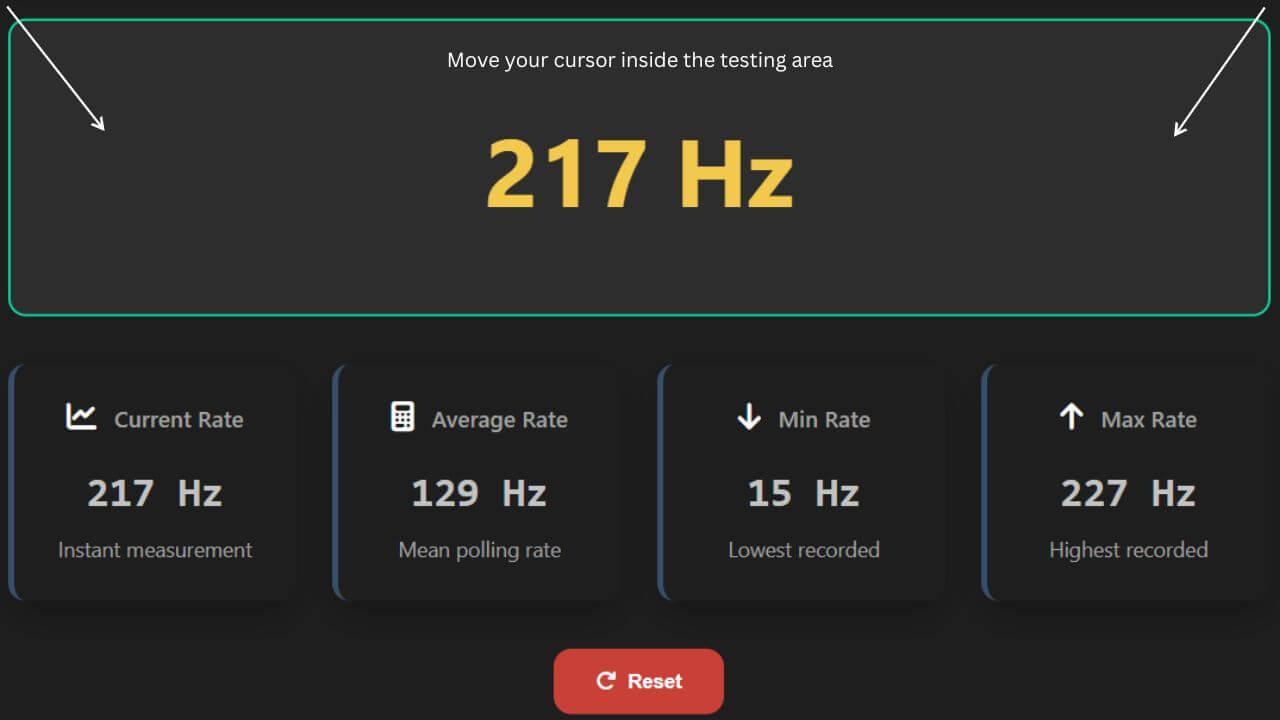
Polling Rate Testing Interface: Shows the testing area where you move your mouse to measure Hz, with real-time display of current, average, min, and max polling rates for accurate performance analysis.
Why Try Our Mouse Rate Test?
| Feature | Description |
|---|---|
| Broad Brand Support | Our polling rate test tool is designed with ultimate features that make it stand out and deliver what users need, and it provides a wide range of support for brands like Razer, Logitech, and Corsair. Allowing every mouse brand to be evaluated accurately, it is flexible enough to evaluate mice irrespective of tag, giving a smooth experience without complications. |
| No-Install, Online Use | There's no installation needed; you can comfortably use it online without a complex process of downloading, installing, or dealing with third-party software. |
| Detailed Analysis & Report | When performing the checks, it generates a detailed analysis and a report showing performance, determining how accurate and swift the device is. |
| Multi-Device Compatibility | Its multi-device compatibility ensures it works on Windows, Mac, and Linux, with a cross-compatibility feature on one platform that's suitable for all devices, running efficiently. |
What Is a Good Polling Rate?
The best fit for different polling rates depends on use cases and how users interact with the mouse. When you scroll web pages, a 125 Hz rate is considered ideal and good, offering a smooth experience, stability, and accuracy. It balances the system's demand, making it perfect for everyday use.
For gamers, a 500 or 1000 Hz rate is suitable. These rates guarantee accurate aiming, help eliminate lag, and allow players to control actions with fast reactions and perfect shots.
How Polling Rate Affects Gaming Performance
The mouse polling rate directly affects gaming performance in several ways, especially in gameplay where fast reactions matter. A higher rate transfers information from the mouse to the computer at a greater speed, which boosts responsivity and enhances control for rapid, precise actions in the game.
| Aspect | Impact |
|---|---|
| Boost Responsivity | A high polling rate boosts responsivity by reducing delay and improving communication speed, ensuring better control and enhancing overall performance. |
| Minimizes Input Lag | A higher rate reduces the delay between registered movement and response, creating a lag-free experience that allows accurate, swift, and precise movements in gaming. |
| Smoother Aiming | A polling rate around 500 or 1000 Hz generates smooth cursor movements, ensures smoother transitions, and supports accurate aiming, easier tracking, and quick shots at opponents. |
Mouse Polling Rate and Why Pro Gamers Demand the Best
In games like Valorant, Apex, and Legends, polling rate is a vital factor where even a minor time lapse can decide winners and losers. The 7ms advantage of a 1000Hz mouse, which updates every 1ms, compared to a 125Hz mouse that updates every 8ms, gives an opponent a head start in the race. Pro gamers understand this gap well. They use it to clutch 1v5s and stay ahead with high rates that ensure smoother control and faster precision.
| Concept | Description |
|---|---|
| The 7ms Advantage | A high polling rate offers a real advantage by improving updates and response speed. It removes input delay and provides every millisecond of edge that gamers rely on to react faster than their opponents. |
| Smooth Operator | With 500Hz+ rates, your cursor glides like butter with zero stutters while tracking enemies. This makes your movement and targeting far smoother, consistent, and accurate during intense gaming sessions. |
| The Catch Behind High Rates | However, pushing to 8000Hz can melt your CPU, much like revving a sports engine. It's thrilling but demands real horsepower and system backup to maintain stability and control. |
| The Esports Secret | Here's a fun fact. Esports pros who look like they're in fast-forward depend on a crisp polling rate as their secret sauce. It's what gives them flawless, high-speed, and unmatched precision that sets them apart in competitive play. |
Choosing Between 125Hz and 1000Hz. Finding Your Perfect Fit
| User Type | Recommended Rate | Description |
|---|---|---|
| Everyday User | 125Hz | A Honda Civic or even a simple car can work just as well as a Ferrari. Your mouse is no different. The Casual User who checks email, scrolls through Twitter, or helps Grandma on her laptop will find 125Hz cheap, efficient, and easy to manage, offering comfort over speed. |
| The All-Rounder | 250Hz–500Hz | The Weekend Warrior loves a balanced, smooth, and reliable setup. A range between 250Hz and 500Hz gives solid performance for a quick game session or Excel work, all without frying the CPU. |
| Precision Chaser | 1000Hz | The Tryhard seems to eat, sleep, and breathe headshots, guided by the motto "If it's not 1000Hz, it's trash." Such players live for precision, driven by the grind to shave off every millisecond for ultimate control. |
What's Right for You?
If you ever find yourself confused, ready to rage, or want to quit, maybe it's time for an upgrade. The right polling rate isn't just about hardware. It's about your lifestyle and how you click through it.
How to Change the Polling Rate of a Mouse?
To change the polling rate of your mouse, the answer is simple. On Windows 10, it depends on the method you choose and the type of branded or non-branded models you own. Some have built-in software to adjust settings at home, while others need manual tweaks. Dive deeper to understand two methods. The first approach works best for devices with official tools, and the second options involve changes done manually, set according to your preference for a more responsive feel.
Changing the Polling Rate of Branded Gaming Mice
| Method | Description |
|---|---|
| Method 1: Built-in Controls for Gaming Models | Method 1 is for direct control. If you have a gaming model like the Zowie EC2-B CS: GO Edition, just press the button to reduce or increase the rate instantly. This built-in option is simple, allowing users to adjust responsiveness easily without extra tools. |
| Method 2: Software Adjustment for Branded Mice | Branded mice such as Logitech, Corsair, and Razer use supporting apps for changing configurations. You can download the app from your manufacturer's website to get access to features like DPI, report, and control. Once opened, the software helps you fine-tune everything for your playstyle, keeping it precise and easy to manage. |
Changing the Polling Rate of Non-Branded Mice
| Step | Action |
|---|---|
| 1 | Check if your mouse supports higher polling rates before using this method. |
| 2 | To change it successfully, download the rate changer tool for Windows and extract the files. |
| 3 | Open the folder, find the checker app, and read the Readme document. |
| 4 | Perform the written steps, then restart your computer once done. |
Important Points to Remember
You may need to repeat these steps every time you start your device, but TaskScheduler can automatically schedule the task to apply the polling rate.
Ensure you have administrative access while performing the above actions to ensure the settings apply smoothly and consistently.
FAQs About Mouse Polling Rate Test
Should I use an 8000Hz polling rate?
Using an 8000Hz polling rate offers extremely fast data reporting, which can benefit high-end gaming mice for ultra-precise tracking. However, many systems and games may not fully support it, and it can cause higher CPU usage. For most users, 1000Hz is sufficient for smooth and responsive performance. Consider your hardware and software compatibility before enabling 8000Hz.
Is a 125Hz Polling rate bad for a mouse?
A 125Hz polling rate means the mouse reports its position 125 times per second, which is generally slower than modern gaming standards. While not "bad," it can result in less smooth cursor movement and noticeable input lag in fast-paced games. For everyday tasks, 125Hz is usually fine, but gamers should opt for higher polling rates like 500Hz or 1000Hz for better responsiveness.
What is the difference between polling rate and DPI?
Polling rate measures how often your mouse sends data to the computer per second (Hz), affecting input lag and responsiveness. DPI (dots per inch) measures the mouse sensor's sensitivity, determining how far the cursor moves on screen per inch of physical movement. Both impact mouse performance but control different aspects: polling rate affects speed of communication, DPI controls cursor precision and speed.
What Should My Polling Rate Be?
For most users and gamers, a polling rate between 500Hz and 1000Hz strikes the best balance between smoothness and system resource use. Higher polling rates reduce input lag but can increase CPU load. Casual users can use lower polling rates like 125Hz or 250Hz without much issue. Always test what feels most responsive and comfortable on your setup.
Is My FPS Affected By A High Polling Rate?
High polling rates increase how often your mouse reports data but generally have minimal impact on FPS (frames per second). FPS depends more on your GPU and CPU performance. However, extremely high polling rates like 4000Hz or 8000Hz could cause minor CPU overhead in some cases. Overall, FPS impact from polling rate is negligible for most users and games.
Does Polling Rate Affect Sensitivity?
Polling rate and sensitivity are related but affect different things; polling rate affects data update frequency while sensitivity determines cursor speed. Changing polling rate does not directly change your mouse sensitivity or DPI settings. However, a higher polling rate can make sensitivity feel smoother and more responsive. Sensitivity adjustments should be made separately in software or game settings.
How To Change Mouse Polling Rate?
You can change your mouse polling rate via the manufacturer's software or drivers, where options like 125Hz, 500Hz, or 1000Hz are usually available. Some gaming mice also allow changing polling rates with onboard buttons or switches. If your mouse lacks dedicated software, third-party tools or Windows settings won't typically adjust polling rate. Always restart your PC after changing polling settings for best results.
Do I need to disable 'Enhance Pointer Precision' in Windows settings?
Disabling "Enhance Pointer Precision" is recommended for gaming because it turns off mouse acceleration, giving you more consistent and predictable cursor movement. With it enabled, your cursor speed changes depending on how fast you move the mouse, which can harm accuracy. For general use, it's a personal preference, but competitive gamers usually disable it for precision.
Do I need to have default mouse sensitivity in Windows settings?
Keeping default mouse sensitivity in Windows is often best because many games and software have their own sensitivity controls. Changing Windows sensitivity can create conflicts or inconsistent behavior across applications. For gaming, it's common to set Windows sensitivity to default and adjust sensitivity within games or mouse software for better control and accuracy.