Mouse Tester Online – Test Your Mouse's Clicks, Buttons and Wheel
Comprehensive diagnostic tool to test your mouse clicks, scroll wheel, gaming mouse side buttons and tracking accuracy
Mouse Testing Area
Select Mouse Type:
Mouse Buttons & Scroll Test
What Is a Mouse Test?
An online tool or mouse test helps users check that computers are working correctly. The tester lets people discover device responds, buttons, scroll, and wheel function properly. User-friendly, accessible, for any person, gamer, relying on mice, try now to ensure smooth functionality and accuracy.
It identifies issues like unresponsive clicks, double-clicking problems, improving performance, maintaining overall, confirming, simple, powerful, way without hassle-free.
Purpose of the Online Mouse Test
An online mouse test helps users assess the performance, functionality, and responsiveness of a device. The user-friendly interface and tester provide instant feedback while testing clicks, scrolling, and wheeling features. This accessible and effective solution lets people optimise settings and ensure a smooth, personalised, and reliable user experience.
Maintaining Performance and Accuracy
Regularly engaging in the mouse test helps identify unresponsive or double-clicking buttons and malfunctions. By adjusting click speed, sensitivity, and tracking accuracy, users can improve, maintain, and confirm overall performance. Timely identification enables swift repairs, keeping the mouse running properly without hassle.
How to Use this Mouse Tester Web Tool?
Below is a Clear Visual Guide on How to Use this Mouse Test Tool:
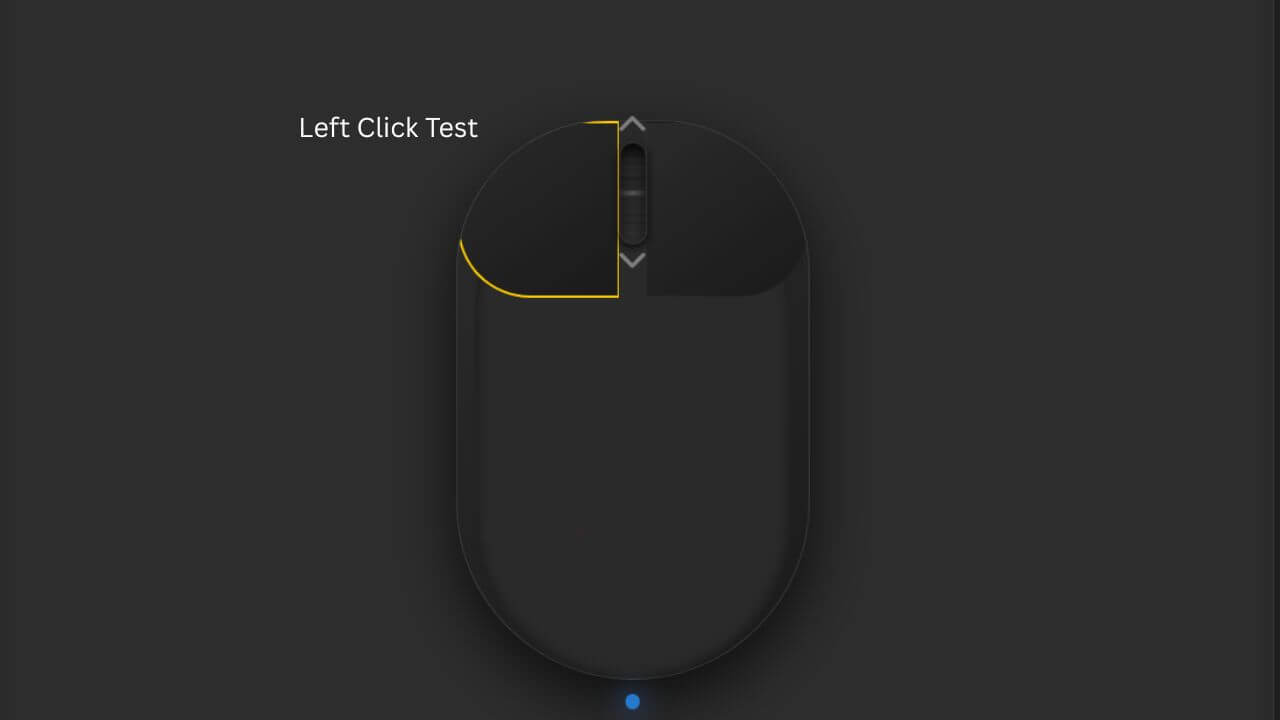
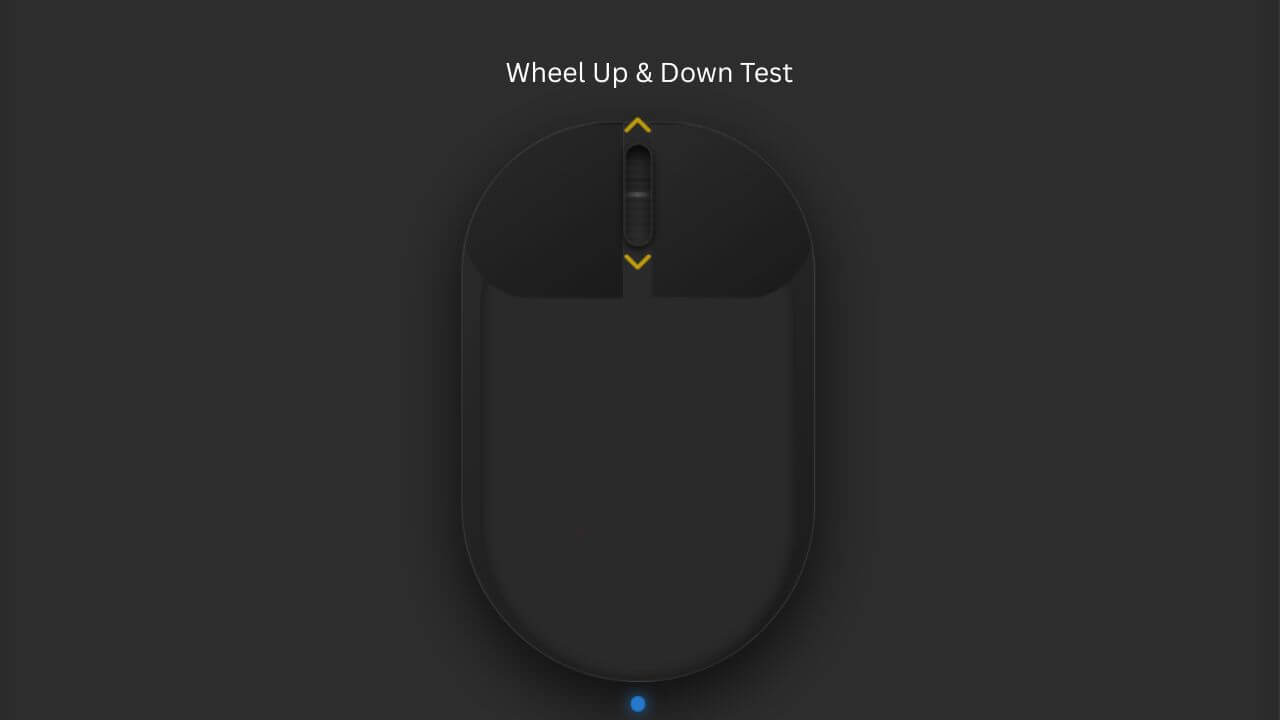
Step-by-Step Testing Guide: Shows the complete process of testing mouse buttons, scroll wheel, and side buttons with detailed instructions for both office and gaming mice.
How Online Mouse Tests Prove Most Useful
| Use Case | Description |
|---|---|
| Troubleshooting Mouse Issues | An online mouse test is an indispensable tool for troubleshooting and diagnosing issues like unresponsive buttons, double-clicking and helps identify malfunctioning parts such as the scroll wheel or sensor and allows users to check, adjust settings, update drivers, or replace the device entirely. This test makes it easier to understand if your mouse needs a quick fix or a complete replacement. |
| Testing New or Used Mouse | When testing new, used, or second-hand mice, this online tool ensures that every feature works properly. It confirms the device is fully functional, free from defects, and ready to purchase. Running the test before buying provides peace of mind because you know that your mouse is in perfect condition. |
| Identifying Hardware Wear and Tear | Over time, hardware can suffer devaluation, causing reduced responsiveness or faulty parts. Regularly testing your mouse helps in catching early signs of deterioration, which allows you to decide when to repair or replace it before it becomes unusable. |
| Post-Repair Testing | After repairing and cleaning internal components, a post-repair test verifies that everything functions correctly. It helps prevent future issues caused by incomplete repairs, ensuring smooth, reliable performance and confirming your mouse is back to working properly. |
Taking the Online Mouse Test
| Step | Action |
|---|---|
| Starting the Test | To begin, open the page where the mouse test is loaded. Start interacting with each button, and if unsure, try the right-click as a starting point. This helps ensure your mouse responds properly from the start. |
| Test Mouse Buttons | Click all buttons, including side or programmable ones, and observe the illustration on the screen. Each corresponding part should light up when functioning correctly, confirming your buttons are working as they should. |
| Scroll Test | Scroll by moving your cursor and rotating the wheel up and down. Watch for the arrows to glow on the illustration, confirming responsiveness and smooth scroll control. |
| Click Function Test | Use the pad area to test the click function. A visual change shows a successful click. Then drag the slider to check movement; it should slide smoothly and properly if the buttons are functioning well. |
| Drag Function Test | Drag the slider on the screen to see if it moves smoothly without delay. This confirms the buttons are working properly and the mouse responds instantly during use. |
| Side Button Test | For additional buttons, press each one and look for a response on the screen. These straightforward actions help confirm all parts are operational, ensuring your mouse is working efficiently and without issues. |
Features Of Our Mouse Test
| Feature | Description |
|---|---|
| Multi-Device Functionality | The mouse test offers multi-device functionality, compatible with various operating systems like Windows, macOS, and Linux. It ensures reliable performance tests, keeping the mouse functionality consistent across all systems. |
| Mouse Sensor Test | The sensor provides precision and responsiveness, crucial for detailed tasks, graphic design, and gaming environments. It gives a competitive edge by ensuring every movement is accurate and reliable. |
| No Need to Install | The tool is directly usable in any browser without additional downloads or installations. This saves time, system resources, and keeps the test simple to access. |
| Free to Use | The mouse test is free, accessible, and inclusive, helping users diagnose and verify functionality. It removes the hurdle of cost for both personal and professional use. |
| Test All Mouse Buttons | It can test buttons like left, right, middle, scroll wheel, and programmable side keys. Each press triggers an on-screen illustration that lights up, confirming responsive and working correctly buttons. |
| Support All Brands | The tool supports brands such as Logitech, Razer, and Microsoft, along with others. It provides a consistent testing experience across all manufacturers, ensuring expected performance. |
| Compatible With Mouse & Touchpad | It works seamlessly with touchpads, external mice, and built-in laptop trackpads. Whether wired, wireless, or Bluetooth, the tool ensures all functions work properly and responsively. |
What to Do When the Mouse Test Fails
| Step | Action |
|---|---|
| Try a Different Browser | To fix the issue, shift to the latest browsing platform and ensure it's updating properly. Use a different browser, such as Chrome or Firefox, which provides efficient outcomes and helps the tool detect clicks and evaluate performance seamlessly. |
| Updating or Reinstalling Drivers | If problems persist, update drivers via the manufacturer's website or use automatic driver-finding software like DriverBooster. This remedy helps overcome common obstacles, restoring functionality and performance to the device. |
| Try a Different USB Port | Dust, debris, or accumulation in a USB port can affect functioning and create issues. Unplug, connect another port, and ensure timely care, as this simple step often helps resolve problems. |
| Replace Batteries | For wireless mice, change batteries or use a wired version to check if it's successful. This can indicate the root cause of the malfunction, ensuring the mouse operates properly again. |
| Final Fix | If the tool still doesn't work, troubleshoot, resolve, and detect remaining issues promptly. These steps help fix your mouse completely, maintaining smooth and reliable performance for the device. |
FAQs About online Mouse Tester
How to Perform a Mouse Test on a Laptop?
- Open the online mouse tester tool in your browser.
- Move your external mouse or laptop touchpad over the test area.
- Click and scroll to check real-time mouse response.
- The tool instantly shows whether each action is working.
Why Does My Mouse Jump When I Scroll?
- Mouse jumping is often caused by dust inside the scroll wheel.
- Outdated or corrupted mouse drivers can also cause this issue.
- Low-quality sensors may produce inconsistent scrolling.
- This mouse test helps confirm irregular scroll behavior.
What Mouse Buttons Can Be Tested With This Test?
- The tool tests left, right, and middle mouse buttons.
- Scroll wheel clicks are detected in real time.
- Side buttons work if supported by your browser.
- Each button press is displayed instantly on the screen.
Does This Test Work on All Browsers?
- Yes, the mouse test works on all modern web browsers.
- It supports Chrome, Firefox, Edge, and Safari.
- No extensions or downloads are required.
- JavaScript must be enabled for accurate results.
Can I Test Wireless And Bluetooth Mice With This Tool?
- Yes, wireless and Bluetooth mice are fully supported.
- The test detects input regardless of connection type.
- Ensure your mouse is properly paired or connected.
- Live feedback confirms wireless mouse performance.
Can Mouse Test Detect Double-Clicking Issues?
- The tool can identify unintended double clicks.
- Rapid repeated clicks are clearly visible.
- This helps diagnose worn or faulty mouse buttons.
- Useful for gaming and productivity troubleshooting.
Can The Test Help Diagnose Scroll Wheel Problems?
- The mouse test tracks scroll wheel movement accurately.
- It detects jumpy, delayed, or missed scrolling.
- Both upward and downward scrolls are monitored.
- This helps confirm if the scroll wheel is faulty.